

Zoom Tip – How to add your logo as a background behind you during a video call
During lockdown we’re holding all our networking meet-ups on Zoom, which has been a bit of a learning curve for us all. Here’s a tip shared by some of our members during our last meet-up which I thought was brilliant, as it replaces your (messy?!) room in the background with your logo, or another image you’d like to share instead, like this:

Pardon my total lack of make-up!
Don’t worry, it won’t actually look backwards to everyone in the call
Although in my screen shot the logo appears backwards, when other participants in the online meeting see it it will be the right way round.
Here’s how to do it…
Step 1 – Wiggle your mouse around so that it brings up the black Zoom menu bar. For some people this is at the top of your screen, for others at the bottom (not sure why).
Step 2 – Click on the little arrow to the right of “Stop Video” and select “Choose Virtual Background”.
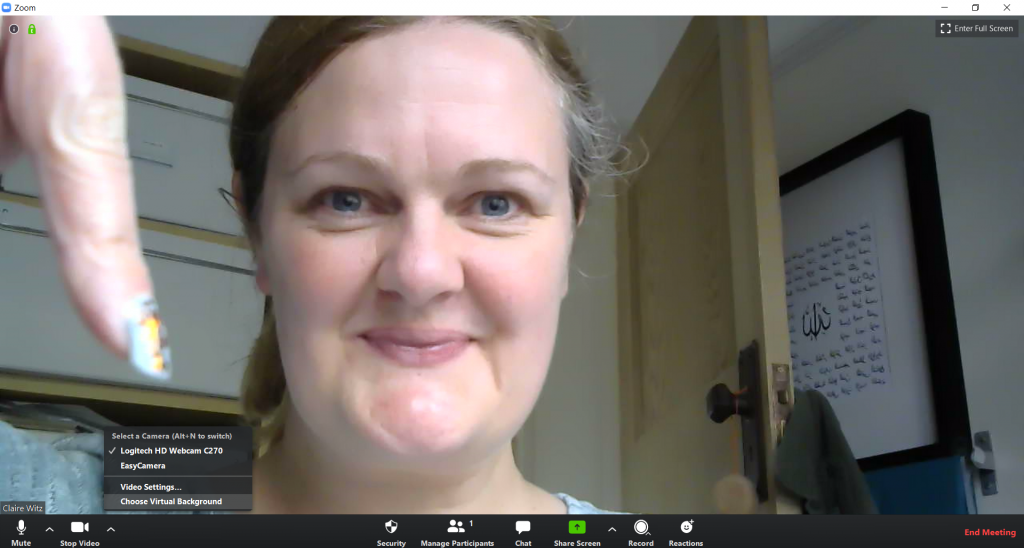
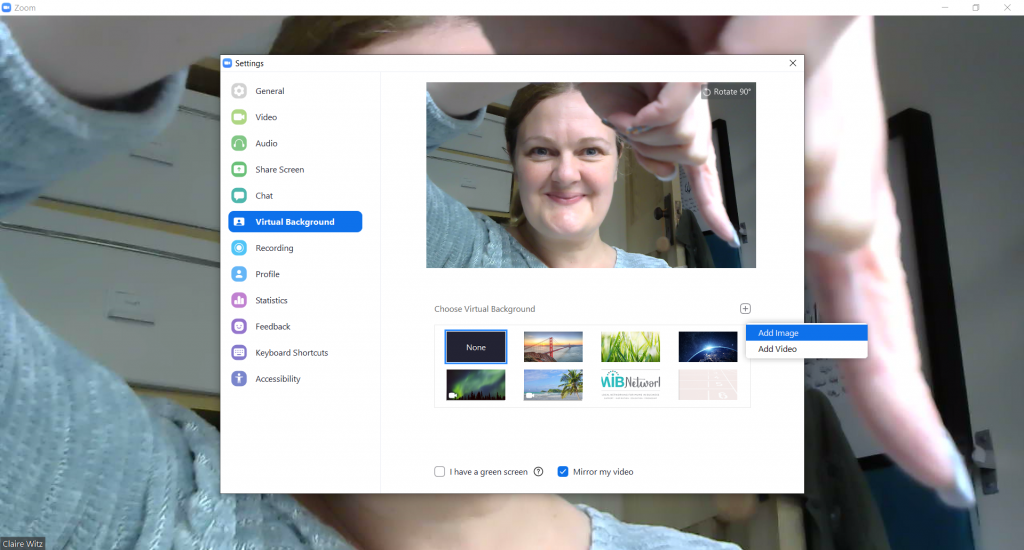
Step 3 – Where it says “Choose Virtual Background” go to the plus symbol in a little square to the right and select “Add Image”.
Step 4 – Select your logo file from your PC and upload it.
Step 5 – You’ll the see it in the image thumbnails below alongside the default backgrounds that Zoom offers.
Step 6 – Click on the thumbnail of your logo and bingo!